




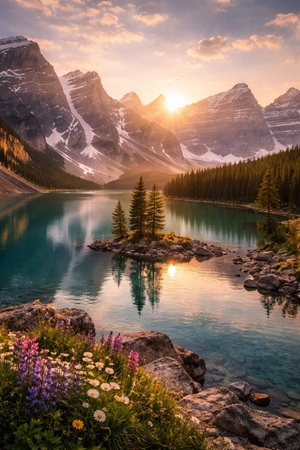
In today’s visual-first world, your photos are more than just memories, they are part of your personal brand. Whether you post on Instagram, build a portfolio, or simply want your gallery to look aesthetic, editing plays a huge role. This is where Lightroom Mobile becomes a game changer.
The best part is you do not need expensive presets to create stunning edits. With the right understanding of tones, colors, and lighting, you can recreate professional looks yourself. In this guide on top 10 Lightroom Mobile preset looks and settings to copy, you will learn how to achieve trending styles using simple, practical adjustments.
Why Preset Looks Matter in Lifestyle Content
Lifestyle content is all about mood and consistency. A clean, warm, or cinematic tone can instantly elevate your photos and make your feed look more professional. Preset looks help you maintain a consistent style, which is essential for building a recognizable aesthetic.
Instead of randomly editing each photo, using similar settings creates a visual identity. This is especially important if you are growing on platforms like Instagram or building a personal brand.
1. Bright and Airy Look
This is one of the most popular lifestyle editing styles. It gives your photos a soft, clean, and minimal feel.
To achieve this look, increase exposure slightly and reduce contrast to soften shadows. Lower highlights and raise shadows to balance lighting. Reduce clarity a bit for a smooth finish and slightly desaturate colors for a subtle tone. This style works best for indoor photos, cafes, and minimal setups.
2. Warm Golden Tone
The warm golden look adds a cozy and inviting feel to your images. It is perfect for sunset shots and lifestyle portraits.
Increase temperature and slightly boost tint towards magenta. Reduce highlights to maintain detail and add a bit of contrast. Adjust the orange and yellow tones to make skin tones glow naturally. This preset gives a rich, golden vibe that feels comforting and aesthetic.
3. Moody Dark Aesthetic
This style is ideal for creating depth and drama in your photos. It is widely used in fashion and urban photography.
Lower exposure and highlights while increasing contrast. Deepen blacks and slightly desaturate colors. Add a touch of green or blue tint in shadows to enhance the moody effect. This look works well for night shots, street photography, and indoor low light scenes.
4. Clean Minimal White Tone
A clean white aesthetic is perfect for lifestyle bloggers who prefer a simple and elegant feed.
Increase exposure and reduce contrast. Push whites higher while keeping blacks slightly lifted. Reduce saturation across most colors and focus on neutral tones. This style is ideal for flat lays, workspace photos, and minimal home setups.
5. Cinematic Look
The cinematic preset gives your photos a movie-like feel with rich tones and balanced contrast.
Lower highlights and deepen shadows. Add teal tones to shadows and warm tones to highlights using color grading tools. Slightly increase clarity and texture for depth. This style works beautifully for travel and storytelling content.
6. Vintage Film Look
If you love a nostalgic vibe, the vintage film look is a great choice. It gives photos a soft, faded, and timeless feel.
Reduce contrast and lower saturation slightly. Add grain to mimic film texture. Shift colors towards warm tones and slightly fade blacks. This preset works well for portraits, travel photos, and lifestyle shots with a retro theme.
7. Vibrant Pop Look
This style is all about bold and eye catching colors. It is perfect for travel, food, and outdoor content.
Increase saturation and vibrance while maintaining balance. Boost contrast and clarity for sharper details. Enhance blues and greens for a lively effect. This preset makes your photos stand out instantly.
8. Soft Pastel Look
Pastel tones create a dreamy and calming aesthetic. This style is widely used in lifestyle and fashion photography.
Lower contrast and reduce clarity for softness. Desaturate strong colors and shift tones towards pastel shades. Increase exposure slightly and keep highlights soft. This look works well for portraits and bright outdoor scenes.
9. Instagram Influencer Look
This is a balanced, all purpose preset that works across different types of content.
Adjust exposure and contrast for a clean base. Enhance skin tones while keeping colors natural. Slightly sharpen the image and add subtle vibrance. This style is versatile and perfect for maintaining a consistent feed.
10. Dark Green Nature Look
This preset is perfect for outdoor and nature photography. It enhances greens while keeping the overall tone deep and rich.
Lower highlights and increase contrast. Adjust green hues to create a deeper tone and slightly desaturate other colors. Add a bit of shadow tint for depth. This style is ideal for forests, parks, and travel photography.
How to Copy and Save These Settings
Once you create a look you like, save it as a preset in Lightroom Mobile. This allows you to apply the same style to multiple photos with just one tap.
After editing a photo, go to the preset option and save your settings. Name it based on the style so you can easily find it later. This saves time and ensures consistency across your content.
Tips to Improve Your Editing Skills
Editing is not just about copying settings, it is about understanding how each adjustment affects your photo. Lighting conditions, camera quality, and subject matter all influence the final result.
Practice with different photos and tweak settings based on what looks best. Over time, you will develop your own unique style. You can also explore related topics like content creation tips and Instagram growth strategies to enhance your overall presence.
Conclusion
Creating stunning photos does not require expensive tools or advanced skills. With these top 10 Lightroom Mobile preset looks and settings to copy, you can transform your images and build a consistent, professional aesthetic.
The key is to experiment, stay consistent, and refine your style over time. Start with one preset, apply it to your photos, and see the difference. As you gain confidence, you can mix and match styles to create your own signature look.
Now it is your turn, open Lightroom Mobile and start editing your photos like a pro today.


